 COME
COMECOME Sport: Access the Category and Check a Network Issue
Confirm that you are at the intended product and note whether all pages or only Sports are affected. Compare ordinary connectivity and one trusted connection. Keep a loading symptom separate from an unavailable activity or account restriction.
The app button opens the COME product web entry. Read its current options before choosing a device or account action.
What you can find in COME
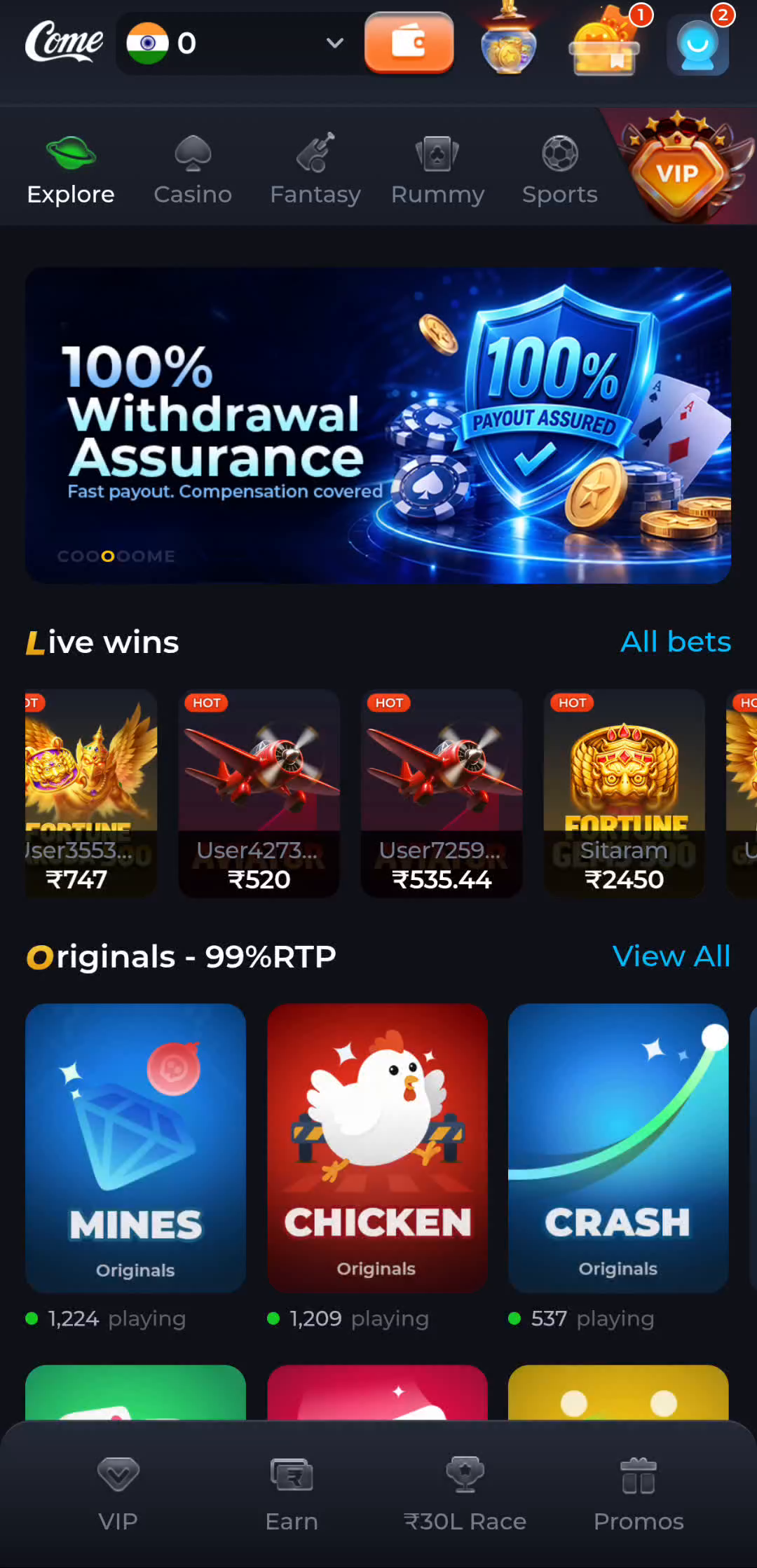
COME groups Explore, Casino, Fantasy, Rummy and Sports in its home interface. The category row is for browsing activities, while the profile menu leads to Account, Transactions, Game History, Settings and Contact CS. These areas answer different questions: choosing an activity, reviewing a personal record, changing a preference or getting help.
Settings shows Language, Check Update, Music and Effects. Use the control that matches the task rather than changing unrelated settings. Product screens and offers can change; read the current labels and conditions before acting. A balance or promotion shown in an illustration is not your account result.
What should I do when the Sports screen keeps loading?
If other sites also fail, investigate the device connection. If only one product screen stalls, keep that screen, time and message for help. Do not repeat a pending account action to test the network.
Read the category before choosing an activity
COME shows Sports and Fantasy as separate categories. Read the current activity description to see whether it concerns match information, a game or a fantasy task. Cricket-themed artwork is a navigation cue; it is not a fixture list, a streaming promise or a complete rulebook.
For a sports question, identify the team or event and the kind of information you need. A schedule asks when something starts, a score asks what has happened and an account record asks what your account did. Those questions may belong on different screens even when they involve the same match.
Keep cricket scores and fantasy points separate
A cricket score records runs, wickets and valid balls. Fantasy points depend on the particular scoring table. For example, 12.4 overs means twelve complete overs and four valid balls, not 12.4 decimal overs. The IPL page explains this notation using labelled examples rather than live results.
Before participating in a fantasy activity, read its current event, selection conditions and points rules. Do not import a player count, credit limit or multiplier from a different service. If the task is simply understanding a match score, you can learn the notation without joining an activity.
Match the next step to the screen
Use the category row to browse and the profile menu to inspect account tools. If a page stalls, keep the exact screen and message. If it closes, record that different symptom. A successful installation, a loaded category and a signed-in account are separate checkpoints, so keep the one that failed clear.
App information and the Android route
The COME listing checked on 30 September 2026 shows v1.13 and a download-size label of 3.1MB. Compare those labels with the release actually offered to your device. They are not a measured installed size, a minimum Android requirement or a verified iOS release.
For Android installation, complete one package transfer, read the installer result and then confirm first launch. Keep device protection enabled. If you already have a working app, preserve its account access while checking a supported update. The product entry used here is https://web-in.comegamehub.com/en/fantasy.
Choose the guide for your next question
COME Sports Connection Checks: Find the Sports Category
For a Sports connection problem, locate Sports and distinguish category navigation from account tools.
COME Sports Connection Checks: Find the Sports Category
COME Sports Connection Checks: Compare the Connection
For a Sports connection problem, locate the failing stage, compare one trusted connection at a time and avoid reinstalling a working app without a reason.
COME Sports Connection Checks: Compare the Connection
COME Sports Connection Checks: Find the Waiting Stage
For a Sports connection problem, identify whether navigation, file transfer, app loading or account access is waiting before retrying.
COME Sports Connection Checks: Find the Waiting Stage
COME Sports Connection Checks: Confirm the First Usable Screen
For a Sports connection problem, distinguish a browser page, a successful launch, connection trouble and account access before changing an installed app.
COME Sports Connection Checks: Confirm the First Usable Screen
COME Sports Connection Checks: Choose the Help Topic
For a Sports connection problem, match access, connection and account-record questions to visible help categories while keeping private credentials out of reports.
COME Sports Connection Checks: Choose the Help Topic
COME Sports Connection Checks: Check Usage Conditions
For a Sports connection problem, check the activity, account eligibility, local rules and personal limits before participation.
Questions before you continue
Does this page sign me in or start a file download?
No. It explains the route and opens a product webpage through the app button. A file transfer, an installation and account login each require their own action and confirmation.
Where should I ask an account-specific question?
Use the intended product’s current recovery or Contact CS route. Describe the task and exact message privately. Do not send passwords, verification codes or payment PINs to a caller or an unsolicited chat contact.
What should I check before participating?
Read the activity’s rules, any cost and the age, location and account conditions that apply. A successful download or visible category is not eligibility approval. Keep personal time and spending limits clear and pause when a material condition is unresolved.